Batch Changing Items
Batch Change provides a fast way to update the same fields across multiple items at once. You can replace existing values, perform calculations on numeric fields, add or remove text, update item specifics and conditions, and combine several changes into a single operation. Frequently used changes can also be saved as Batch Change Definitions so they can be quickly applied again in the future.

To change multiple items in a batch:
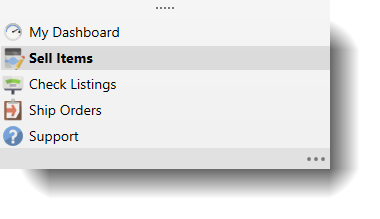
- Open the Sell Items mode. How?How? From the Mode selector in the lower left, choose Sell Items.
- From the grid, select the items that will be revised.
- From the Modify tab on the ribbon bar, click the arrow under the Edit button and choose Batch Change.
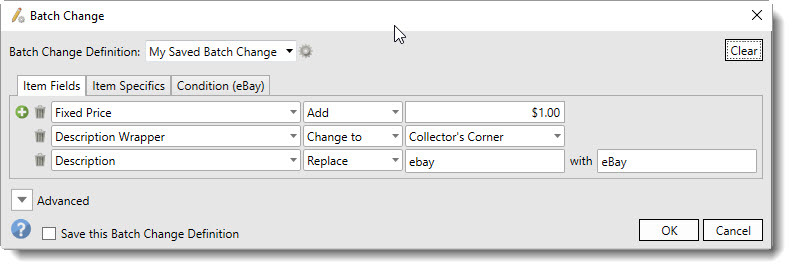
- If a similar batch change has been saved as a Batch Change Definition in the past, it can be used as a starting point. Choose it from the Batch Change Definition dropdown near the top of the window.
- To make changes to any item or listing field, select the Item Fields tab.
- In the first Field Name dropdown on the left, select the field to be changed.
- In the Action dropdown just to the right of the field dropdown, choose the action that will be performed. The following actions are allowed.
|
Action |
Applies to |
Description |
|
Change to |
Numeric, Text, Boolean (True/False) |
Changes the field to the specified value |
|
Add, Subtract, Multiply, Divide |
Numeric |
Performs the requested math operation on the original value |
|
Percent Increase |
Numeric |
Increases the value by the specified percentage |
|
Percent Decrease |
Numeric |
Decreases the value by the specified percentage |
|
Undo Percent Increase |
Numeric |
This will undo a percent increase. For example, increasing the price of a $100 item by 10% will set the price to $110. Performing an immediate percent decrease of 10% will not return the value to $100, but instead will decrease the price by $11 to $99. Use the Undo Percent Increase of 10% to return the $110 price back to $100. |
|
Undo Percent Decrease |
Numeric |
This will undo a percent decrease. For example, decreasing the price of a $100 item by 10% will set the price to $90. Performing an immediate percent increase of 10% will not return the value to $100, but instead will increase the price by $9 to $99. Use the Undo Percent Decrease of 10% to return the $90 price back to $100. |
|
Append |
Text |
Adds the specified text to the end of the field. |
|
Prepend |
Text |
Adds the specified text to the beginning of the field. |
|
Replace |
Text |
Replaces the value in the field with the specified value |
|
Assign from |
Text |
Assigns the field value with the value from another field |
- In the last column on the right, enter the Action Value.
- Click the plus icon (
 ) to add additional changes.
 - The minus icon (
 ) can be used to remove changes at any time.
 - To make changes to item specifics values, select the Item Specifics tab.
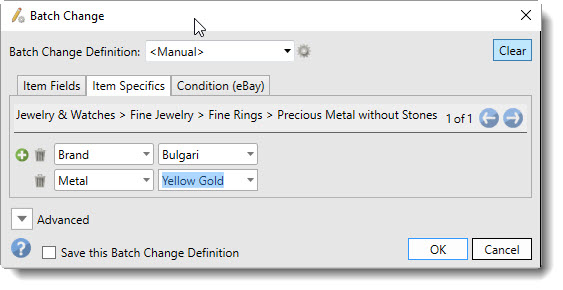
- Different categories can contain different item specifics. Each unique category in the selected items will be loaded into the batch change view. Use the navigation arrows to navigate between categories.
- For each category that is to have item specifics changed, select the item specific and the value it will be changed to.
- Click the plus icon () to add additional changes.
- The minus icon () can be used to remove changes at any time.
- To make changes to item condition, select the Condition tab.
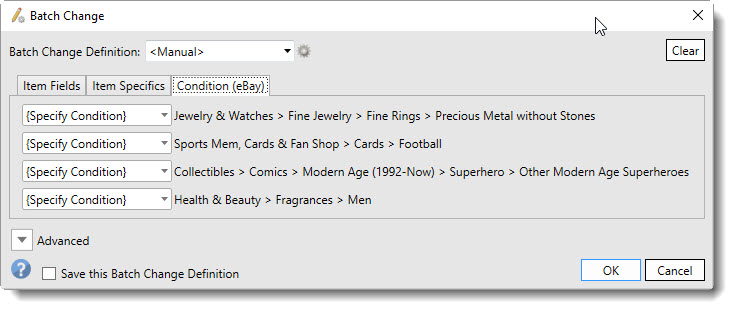
- Different categories can have different item condition values. For example, "New with Tags" may apply to clothing, but won't apply to coins. Each unique category in the selected items will be loaded into a table on the Condition tab.
- For each category that is to have item condition changed, select the condition from the dropdown to the left of the category name.
- The Advanced Expander can be expanded to see the details of the database query that will be performed.
- SixBit cannot tell if pictures have changed. If modifications have been made to pictures or they must be uploaded again, for any reason, check the Resend pictures with revision box.
- Check Save this Batch Change Definition to save these changes as a named definition. This will allow them to be easily repeated in the future.
- Click OK to perform the change.